systemd-journald and Journal Persistence: What Happened Right Before It Died, Hands-On
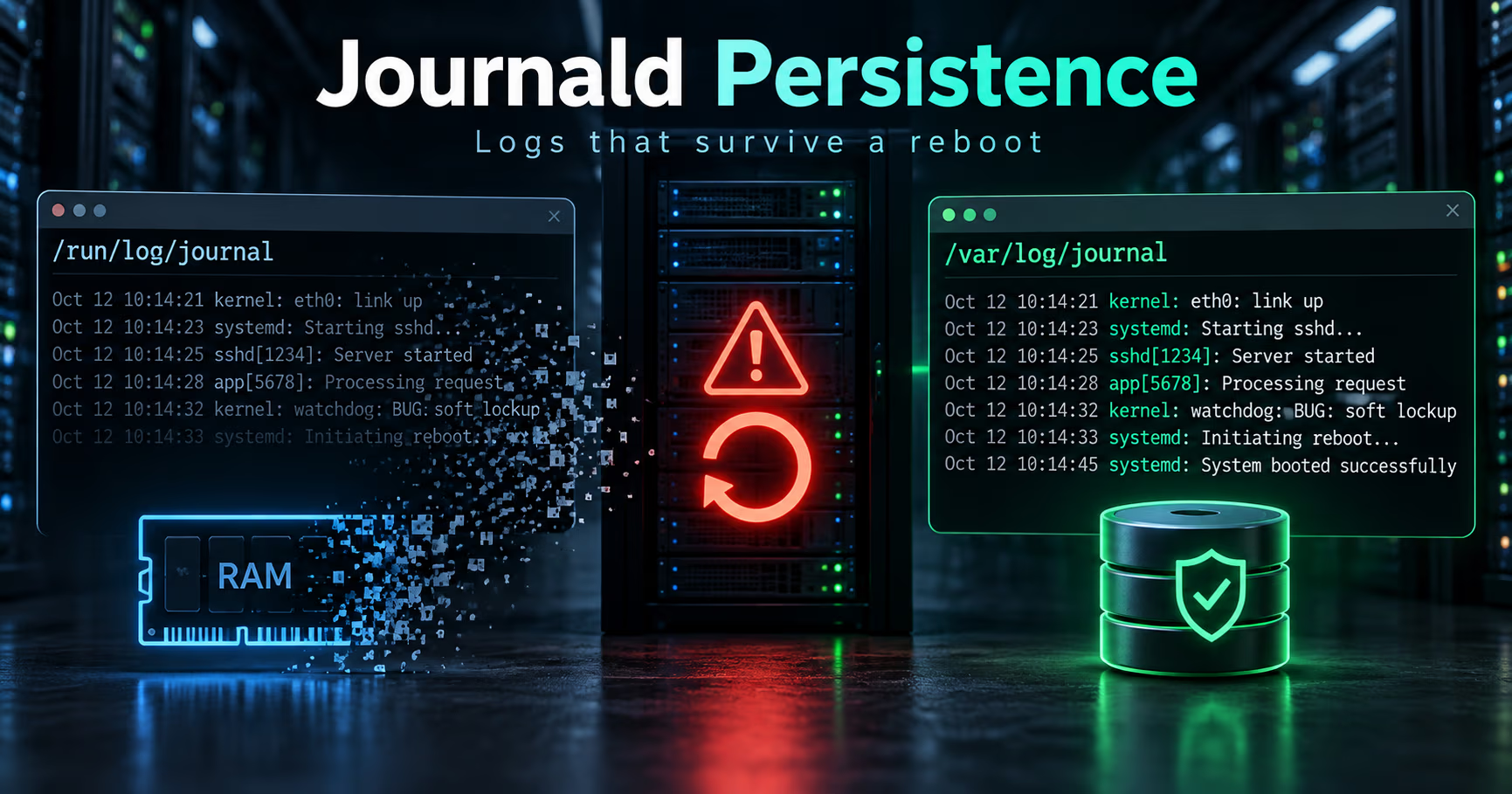
The journal lives in RAM, and the evidence disappears at exactly the moment it becomes interesting.
systemd-journald is the service that collects that evidence. It takes kernel messages from kmsg, plain syslog() calls written to /dev/log, structured records over the native journal protocol, audit records from the kernel audit subsystem, and the standard output and standard error of every service unit.
Each record is stored as a structured, indexed entry with metadata journald attaches itself, in a way the sender cannot forge. That metadata is the reason journalctl can filter on things the application never logged: the unit, the command, the PID, the boot and the machine ID.
The storage location is the part that catches people out. Persistent data goes below /var/log/journal. Volatile data goes below /run/log/journal, which is a tmpfs and therefore gone at reboot. And the default picks between them based on whether a directory exists, which is why the question in this post's title so often has a short and disappointing answer. This is the fix: what journald stores and where, the two steps that make it survive a reboot, how to bound it so it does not eat the disk, the silent ways entries still go missing, and the handful of journalctl calls that read the previous boot once the machine has already come back up.
The short version
- The journal is volatile by default on plenty of installs. Storage= defaults to auto, which means persistent only if /var/log/journal already exists at boot. No directory, no history, and no warning until you need it.
- Turning persistence on is two steps, not one. Create the directory with the right ownership and modes, then flush what is already in RAM, or the current boot is split across two stores and the interesting half may be the one you cannot see.
- Bound the size before it fills the disk. SystemMaxUse and SystemKeepFree default to percentages of the filesystem, each capped at 4 GiB, and vacuuming only ever deletes archived files.
- Two silent loss modes survive persistence. Per-service rate limiting drops the loudest service's lines, and the sync interval leaves up to five minutes of err, warning, notice, info and debug entries sitting in a buffer.
- Reading the previous boot is four commands. List the boots, read the tail with microsecond timestamps, filter by unit or priority, and check whether a shutdown sequence exists at all. Its absence is evidence too.
- A journal on the machine it describes is not tamper evidence. Sealing helps with alteration, and a second copy somewhere else is the stronger move, because root can delete either.
- systemd (Debian 13 trixie)
257.13-1~deb13u1 - systemd (upstream)
261.2 latest stable; 262 in release candidate - journald.conf defaults, as documented
Storage=auto, RateLimitBurst=10000 in 30s, SystemMaxUse=10% capped at 4G, SystemMaxFileSize=1/8 of that capped at 128M, SystemMaxFiles=100, MaxFileSec=1month, MaxRetentionSec=0, SyncIntervalSec=5min
Checked 2026-09-10 against the Debian trixie journald.conf(5) and systemd-journald.service(8) man pages (systemd 257.13), the upstream man pages at 261.2, and the Red Hat knowledge base article on enabling persistent logging. Storage behaviour and the size defaults have been stable for years, while per-namespace settings, credentials and reload behaviour keep moving, so re-check the man page that matches the systemd you actually run.
What journald actually is
Five inputs, one indexed store
journald is the collection point for almost everything a Linux box says about itself, and it is deliberately more than a text file with timestamps on it. Entries are indexed by the fields journald collected, which is why the same store answers "what did nginx log" and "what happened between 22:00 and 22:05" without you writing a parser. Individual fields can technically be enormous, but the practical limits are the line length cap, which defaults to 48K, and the compression threshold, which defaults to 512 bytes.
Where the bytes live, and why the default bites
Storage= takes volatile, persistent, auto or none. Volatile writes only below /run/log/journal. Persistent writes below /var/log/journal, with an automatic fallback to /run during early boot or when the disk is not writable yet, and it creates the hierarchy if it is missing. auto behaves like persistent when /var/log/journal exists and like volatile when it does not. The default in the default namespace is auto, and every other journal namespace defaults to persistent.
So on a stock install where nothing has created /var/log/journal, every entry is in RAM. The machine looks completely healthy, right up to the reboot or the hang, at which point journalctl -b -1 has nothing to read and the answer to "what happened right before it died" is a polite error message. This is not a bug and it is not new; it is a default that favors a small disk over an incident review.
There is a second detail that surprises people even after they enable persistence: journald starts out volatile and only switches to the persistent store once something asks it to flush. That request is a call to journalctl --flush, a SIGUSR1 to journald, or the systemd-journal-flush.service unit that runs automatically at boot. Per-user journal files are also only supported when storage is persistent, so journalctl --user is unavailable while the journal is in RAM.
Step 0: find out where the logs actually are
Two minutes of checking beats a week of assuming. The disk usage line tells you how much is stored, the directory listing tells you where, and --list-boots tells you how far back the machine can actually remember.
# how much is on disk right now
$ journalctl --disk-usage
Archived and active journals take up 156.0M in the file system.

# persistent directory present, or only the volatile one?
$ ls -d /var/log/journal 2>/dev/null && echo "persistent directory exists"
$ ls /run/log/journal/ 2>/dev/null && echo "volatile storage in use"

# any explicit settings anywhere in the drop-in chain
$ grep -rH '^Storage\|^SystemMax\|^RateLimit' /etc/systemd/journald.conf /etc/systemd/journald.conf.d/ 2>/dev/null

# how many boots are still readable
$ journalctl --list-boots
IDX BOOT ID                          FIRST ENTRY                       LAST ENTRY
 -1 9f0a4c1e6b8d4c0e9f7a2b3c4d5e6f70 Sun 2026-09-06 07:12:44 UTC       Sun 2026-09-06 22:03:11 UTC
  0 3c71e5d9a0b1c2d3e4f5061728394a5b Wed 2026-09-09 06:58:02 UTC       Wed 2026-09-09 09:41:15 UTC
A single boot in that list, or a plain "No such boot ID in journal" from journalctl -b -1, is not a bug and not a corrupted journal. It is the storage mode telling you that the previous boot was collected in RAM and then discarded.
Step 1: turn persistence on, then flush what is already in RAM
# /etc/systemd/journald.conf.d/10-persistence.conf
[Journal]
Storage=persistent
A drop-in is the right place for this. Drop-ins take precedence over the main file in /etc, they survive a package upgrade that replaces the vendor configuration, and the man page recommends the 60 to 90 range for filenames under /etc so that local settings win over anything a package ships.
Setting Storage=persistent also means journald creates the directory hierarchy itself, which is the difference from the default auto mode where the directory has to exist before journald will use it.
$ sudo mkdir -p /var/log/journal
$ sudo systemd-tmpfiles --create --prefix /var/log/journal
$ sudo systemctl restart systemd-journald
$ sudo journalctl --flush

# proof: previous boots are listed, and the current one now writes to disk
$ journalctl --list-boots
$ ls -l /var/log/journal/
drwxr-sr-x 3 root systemd-journal 4096 Sep  9 09:41 3c71e5d9a0b1c2d3e4f5061728394a5b
Read those four commands as one idea. mkdir gives auto mode the directory it was waiting for. systemd-tmpfiles applies the expected ownership and modes, root and the systemd-journal group, with the setgid bit so that files created later inherit the group. Restarting journald picks up the new configuration. And journalctl --flush moves what is already sitting in /run into /var, because otherwise the current boot is recorded in two places and the part before the flush is the part that dies with the machine. The flush is only meaningful after /var is mounted, which is exactly why the boot-time flush exists as its own service.
Step 2: bound the size before it eats the disk
Once logs persist, they persist, and the defaults are percentages rather than numbers. SystemMaxUse defaults to 10 per cent of the filesystem the journal lives on, SystemKeepFree to 15 per cent, each capped at 4 GiB, and journald enforces whichever of the two is smaller. Two consequences follow. If the filesystem is nearly full when journald starts, the limit is raised to whatever is actually free, so a bad day can still fill the disk. And vacuuming only deletes archived files, so the total can sit above the configured limit until rotation catches up with it.
# /etc/systemd/journald.conf.d/20-limits.conf
[Journal]
Storage=persistent
SystemMaxUse=2G
SystemKeepFree=5G
SystemMaxFileSize=128M
SystemMaxFiles=50
MaxFileSec=1month
MaxRetentionSec=90day
The individual file size defaults to one eighth of SystemMaxUse, capped at 128 MiB, and the file count to 100, which is how about seven rotated files of history usually end up on disk. MaxFileSec defaults to one month. MaxRetentionSec defaults to zero, which means time-based deletion is off unless you switch it on. Choosing an explicit retention window is the difference between "we keep whatever fits" and "we keep 90 days", and 90 days is a fair floor for incident work: long enough to cover a problem nobody noticed for a month, small enough that a modest disk survives it.
$ journalctl --disk-usage
Archived and active journals take up 2.1G in the file system.

# rotate first, then vacuum: the order matters
$ sudo journalctl --rotate
$ sudo journalctl --vacuum-size=500M
$ sudo journalctl --vacuum-time=30day
$ sudo journalctl --vacuum-files=20
$ journalctl --disk-usage
Archived and active journals take up 486.4M in the file system.
Vacuuming is a manual action, not a policy. It is useful when a runaway service has just written a gigabyte of stack traces and you want the space back today, and it is a useful reminder that the important logs belong somewhere else as well. Retention on the box is the same conversation as the backup post, one layer down: a log you cannot restore is not a record.
| Feature | Volatile (/run/log/journal) | Persistent (/var/log/journal) |
|---|---|---|
| Where the data lives | /run, a tmpfs held in memory | /var/log/journal/MACHINE_ID on disk |
| Survives a reboot | No, cleared at every boot | Yes, until size or retention limits delete it |
| journalctl -b -1 | Nothing to read | The previous boot, if it is still in the retention window |
| Per-user journals | journalctl --user is unavailable | Supported, with read access granted by ACL |
| Which limits apply1 | RuntimeMaxUse, RuntimeKeepFree, RuntimeMaxFiles | SystemMaxUse, SystemKeepFree, SystemMaxFiles |
| Cost | RAM you may want for other things | Disk space you have to bound |
| Best for | Diskless, read-only and immutable images, containers, throwaway VMs | Anything whose crash you might have to explain |
Where the data lives
- Volatile (/run/log/journal)
- /run, a tmpfs held in memory
- Persistent (/var/log/journal)
- /var/log/journal/MACHINE_ID on disk
Survives a reboot
- Volatile (/run/log/journal)
- No, cleared at every boot
- Persistent (/var/log/journal)
- Yes, until size or retention limits delete it
journalctl -b -1
- Volatile (/run/log/journal)
- Nothing to read
- Persistent (/var/log/journal)
- The previous boot, if it is still in the retention window
Per-user journals
- Volatile (/run/log/journal)
- journalctl --user is unavailable
- Persistent (/var/log/journal)
- Supported, with read access granted by ACL
Which limits apply1
- Volatile (/run/log/journal)
- RuntimeMaxUse, RuntimeKeepFree, RuntimeMaxFiles
- Persistent (/var/log/journal)
- SystemMaxUse, SystemKeepFree, SystemMaxFiles
Cost
- Volatile (/run/log/journal)
- RAM you may want for other things
- Persistent (/var/log/journal)
- Disk space you have to bound
Best for
- Volatile (/run/log/journal)
- Diskless, read-only and immutable images, containers, throwaway VMs
- Persistent (/var/log/journal)
- Anything whose crash you might have to explain
- the Runtime settings are what apply during early boot even with persistence on
Step 3: the two silent loss modes that survive persistence
Rate limiting drops the loudest service's lines
journald rate limits per service: by default 10000 messages in 30 seconds, and the effective burst is multiplied by up to six times depending on how much free space the journal filesystem has. Past the limit, further messages in that window are dropped and a single record about the number of dropped messages is generated instead. In practice it shows up as a line like Suppressed 41268 messages from ..., and it usually comes from the one service you were trying to read.
That is the worst possible failure mode for crash forensics. A service that starts looping is exactly the service whose first few hundred lines matter, and suppression kicks in after the first few thousand. When one unit is noisy, give that unit its own limits rather than loosening the defaults for everything.
# /etc/systemd/system/myapp.service.d/logging.conf
[Service]
LogRateLimitIntervalSec=30s
LogRateLimitBurst=200000
# or, for a service that must not lose a line:
# LogRateLimitBurst=0
Setting either value to zero disables rate limiting, globally in journald.conf or per service in the unit. Zero is a real decision, not a free win: a service logging 50 MB a minute during an incident will now write 50 MB a minute to your disk, which is why the size limits come before the rate limit in this post.
The sync interval leaves a window unsynced
journald writes entries and syncs its files to disk on an interval that defaults to five minutes. There is one important exception: a message of priority crit, alert or emerg forces an immediate sync. So a power cut can cost you the last few minutes of err, warning, notice, info and debug entries, while the genuinely fatal line is usually still on disk. When you are chasing a hang rather than a panic, that window is precisely the window you care about.
Reading the log from before the crash
Assuming persistence is on and the previous boot is still inside the retention window, this is the sequence I run after anything unexplained. The output format matters: short-precise prints microsecond timestamps, which is what makes the final seconds readable.
# which boots are still on disk, and which one is current
$ journalctl --list-boots

# the last minute or so of the previous boot
$ sudo journalctl -b -1 -n 60 -o short-precise --no-pager
Sep 08 22:03:10.914523 host kernel: nvme0n1: I/O error, dev nvme0n1, sector 23117824
Sep 08 22:03:11.002118 host systemd[1]: Job dev-disk-by-uuid-9c1e.device/start timed out
Sep 08 22:03:11.104771 host systemd[1]: Timed out waiting for device /dev/disk/by-uuid/9c1e...
Sep 08 22:03:11.205440 host kernel: EXT4-fs (nvme0n1p2): previous I/O error to superblock detected

# warnings and worse, then kernel errors only
$ sudo journalctl -b -1 -p warning -o short-precise --no-pager
$ sudo journalctl -b -1 -k -p err -o short-precise --no-pager

# one unit inside one window, once you know roughly when it went wrong
$ sudo journalctl -b -1 -u nginx --since "22:00" --until "22:05" -o short-precise

# did the box get anywhere near a clean shutdown?
$ sudo journalctl -b -1 -o cat --no-pager | tail -n 6
That last command answers the question that matters most. A clean reboot ends with systemd-shutdown telling you it is sending SIGTERM to the remaining processes and syncing filesystems, followed by the reboot itself. If your tail is an application's final line with no shutdown sequence after it, the machine never got there: it hung, panicked, lost power, or was reset out from under you. That is a different investigation from "we rebooted and something broke", and it is why the watchdog post is the natural companion to this one.
Two more tools for the same job. When the box will not boot at all, read its journal from a working machine instead.
# mount the system disk read-only on a box that works
$ sudo mkdir -p /mnt/rescue
$ sudo mount -o ro /dev/sda2 /mnt/rescue

# point journalctl at the directory, not at your own journal
$ sudo journalctl -D /mnt/rescue/var/log/journal -b -1 -n 200 --no-pager
$ sudo journalctl --file /mnt/rescue/var/log/journal/*/system.journal -p err --no-pager

# check whether the files themselves are intact
$ sudo journalctl --verify --file /mnt/rescue/var/log/journal/*/system.journal
-D takes a directory and --file takes a single journal file, which is the difference between reading a machine's whole history and reading one rotated segment. And do not be tempted to copy that directory into your own /var/log/journal: journald treats a foreign machine's files as someone else's and rotates them away. journalctl is the tool for reading other people's journals, not the daemon.
When an entry is ambiguous, -o verbose shows the metadata journald attached: the boot ID and machine ID used for attribution, the unit, the PID and the command, and both timestamps, the one journald recorded when it received the entry and, when the sender provided one, the timestamp the sender claims. Ordering follows the receive side, so a message that sat briefly in a buffer lands a fraction later than the application thought it wrote it. That is a small thing to know before building a theory on a millisecond.
Sealing, access control, and the honest limit
journald can protect its files from unnoticed alteration. Seal= is enabled by default, and once a sealing key exists, created with journalctl --setup-keys, persistent journal files use forward secure sealing and journalctl --verify can detect entries that were changed after they were written. For an audit trail that has to survive a conversation about tampering, that is a genuinely useful property, and its cost is one key you now have to store somewhere sensible.
Access control is the other half of that sentence. Journal files are owned and readable by the systemd-journal group and are not writable by it, per-user files are granted read access through file system ACLs rather than ownership, and distributions commonly grant read access to the adm or wheel groups with a setfacl pass over /var/log/journal. If you have ever wondered why a user can read their own journal but not the system one, that mechanism is the answer.
For a copy that outlives the machine there are two roads. Forward to a traditional syslog daemon and let it write wherever you like, remembering that forwarding to syslog is off by default now and that most syslog daemons read the journal themselves rather than waiting on a socket, so the Storage= setting is the one that matters. Or use the journal's own remote tooling: systemd-journal-remote on the receiving side and systemd-journal-upload on the sending side, which speak the journal export format over HTTP. Either way you have created a second log store, which means backing it up and testing a restore, exactly as the backup post insists for every other piece of the stack.
The limits that bite
- The default is volatile on a lot of installs. Storage=auto does nothing for you unless /var/log/journal exists at boot, and nothing warns you about it until you need history.
- Percentage based limits are not a budget. 10 per cent of a filesystem, capped at 4 GiB, and the cap is raised to the actually free space when the disk is nearly full at journald start.
- Vacuuming only removes archived files. Usage can sit above the configured limit until rotation happens, and a manual --vacuum-size is the only way to reclaim space right now.
- Rate limiting is on by default. 10000 messages per 30 seconds per service, multiplied by up to six times from free disk space, and the messages that vanish belong to the service that was misbehaving.
- Everything below crit can be up to five minutes unsynced. A hard power loss takes that context with it, which is fine until the hang you are debugging is the last three minutes.
- An unclean stop leaves the tail uncertain. The active file is renamed with a .journal~ suffix, and the records you were looking for are the ones that were mid-write.
- Namespaces are separate stores. A unit with LogNamespace= writes into its own journal with its own configuration file, and reading it needs journalctl --namespace=. Logs there are easy to forget during an incident.
- The local journal is not a forensic record. Root can change anything, including the retention policy. A remote copy is what turns the log into evidence rather than a convenience.
- Defaults and features move between versions. The configuration format is stable, while per-namespace settings, credentials, socket forwarding and configuration reload have all arrived in recent releases. Pin the version and track the release notes the way the release-tracking workflow already does.
Which should you pick?
- Any box whose crash you might have to explain: Storage=persistent in a drop-in, explicit SystemMaxUse and SystemKeepFree, MaxRetentionSec=90day, generous or disabled rate limiting for known-noisy units, and one copy shipped off the machine.
- A diskless, read-only or immutable system: leave it volatile on purpose, and accept that the log dies with the boot. What you should not do is leave it volatile by accident and discover the difference during a postmortem.
- A container: the journal inside the container is its own store and is usually volatile, while the container's standard output is being collected by whatever runs the container. History for a container lives in the platform's log driver, not in the host's journald.
- Plaintext logs for other tools: keep a syslog daemon alongside, and point it at the journal rather than relying on socket forwarding, which is disabled by default. The journal remains the primary store, so Storage= is still the setting that decides whether you have history.
- Long retention or compliance: the journal is the wrong store for a year of history. Keep the local window generous for operations, and archive to files or a log platform where access control is enforceable and a restore has actually been tested.
- Nothing at all: if the box has no disk worth logging to and no remote collector, no amount of journald tuning produces history. Fix the plumbing, or say out loud that you have no logs and plan accordingly.
Official sources
- journald.conf(5), Debian trixie build on systemd 257.13: https://manpages.debian.org/trixie/systemd/journald.conf.5.en.html
- journald.conf(5), upstream: https://www.freedesktop.org/software/systemd/man/latest/journald.conf.html
- systemd-journald.service(8), storage, signals and access control: https://www.freedesktop.org/software/systemd/man/latest/systemd-journald.service.html
- journalctl(1), including --list-boots, -b, -D, --file, --verify, --setup-keys, --flush, --rotate, --sync and --vacuum: https://www.freedesktop.org/software/systemd/man/latest/journalctl.html
- systemd.journal-fields(7), the metadata on every record: https://www.freedesktop.org/software/systemd/man/latest/systemd.journal-fields.html
- Journal export formats, used by systemd-journal-remote and systemd-journal-upload: https://systemd.io/JOURNAL_EXPORT_FORMATS/
- systemd releases and changelog: https://github.com/systemd/systemd/releases
- Red Hat knowledge base, how to enable persistent logging for the systemd journal: https://access.redhat.com/solutions/696893
- Arch Wiki, systemd/Journal: https://wiki.archlinux.org/title/Systemd/Journal
- Our watchdog post: https://systhoughts.com/posts/linux-watchdog-what-it-is-and-how-to-set-it-up
- Our AIDE and inotify-tools post: https://systhoughts.com/posts/aide-and-inotify-tools-file-integrity-and-filesystem-monitoring
- Our backup and recovery keys post: https://systhoughts.com/posts/3-2-1-backup-rule-not-enough-self-hosted-infrastructure
- Our release-tracking workflow: https://systhoughts.com/posts/tracking-software-releases-across-forges
Have you ever gone looking for the log of a crash and found an empty journal instead? What did you end up using as the record, and how much history do you keep on the box itself versus somewhere else? Drop it in the comments.
Until next time, keep your systems thoughtful.
No comments yet